 FarryOn
Finder, camera and chat
The tools on the home screen and in the top menu: identify anything in a photo, let Farry look through the camera, and read your conversation as text.
The top menu, in short
Tap ⋯ on the home screen. From left to right (see Part 1, step 7):
| Icon | What it opens |
|---|---|
| Account (your initial) | Settings — Part 10. |
| Chat | Shows or hides the written conversation — step 4. |
| Translate | Live translation — Part 3. |
| Finder | Identify a landmark or product in a photo — step 1. |
| Grid | Your stuff: notes, reminders, chats — Part 6. |
| Gear | Settings — Part 10. |
| ✕ | Closes the menu. |
1Finder: identify anything in a photo
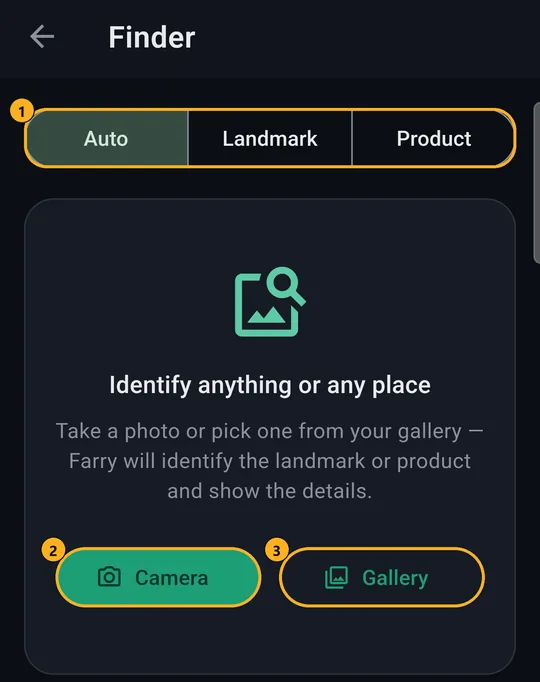
Open the menu ⋯ and tap the Finder icon.

After a few seconds of Identifying… you get a card:
- What it is, and how sure Farry is (e.g. 90% match).
- A short description — tap Read more.
- For places: Open in Maps and Wikipedia.
- For products: where to buy it and similar images.
Tap ↻ on the photo to try another one.
2Ask what the camera sees
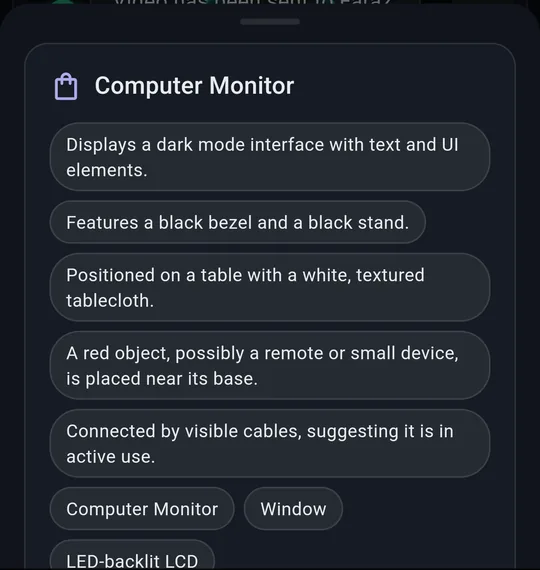
Point the camera — or look, with glasses on — and either:
- tap the Identify button (the square with a dot), or
- just ask: “What am I looking at?”, “What does this sign say?”
A card slides up with what Farry sees, the details she noticed, and tags. Swipe it down to close.
3The buttons with glasses connected
When glasses are connected, the bottom row changes. Here it is with the top menu open:
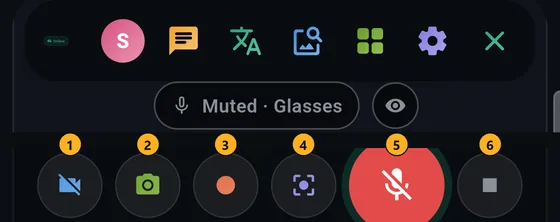
The eye chip next to the microphone chip shows the glasses are the camera Farry uses. Without glasses, the phone camera, front/back switch and zoom (1×, 2×, 4×) appear instead — see Part 1, step 7.
4See the conversation as text
Tap the Chat icon in the top menu to show or hide the written conversation — what you said and what Farry answered. It's handy in a noisy place, or to copy something Farry said.
- Typing in Type a message… works whether the chat is shown or not.
- Photos you took appear in the chat as cards — tap one to enlarge it.
- Every session is saved when it ends; read old ones in Your stuff → Conversations.
?If something goes wrong
| What you see | What to do |
|---|---|
| Finder says “Something went wrong” | Check your internet and try again. |
| Identify says the glasses aren't connected | Tap the glasses chip to reconnect (Part 2), or turn on the phone camera. |
| The camera button is grey | Allow the camera: phone Settings → Apps → Farry → Permissions → Camera. |
| Image scans used up | Each Finder or Identify uses one scan — see Part 7: Your plan. |
Still stuck? Message us on WhatsApp — a real person answers.
Sat–Thu, 10:00–19:00 GST