 FarryOn
Telegram
Connect your own Telegram account once, and Farry can send messages, photos and videos from your glasses to anyone — or any group — by voice. Unlike WhatsApp, Telegram messages go out directly, so Farry always reads them back and waits for your yes.
Before you start
- The Telegram app installed on your phone and signed in — the login code arrives there.
- For photos and videos: your glasses connected (Part 2).
1Connect your Telegram account
Open the menu ⋯ → Settings. Under Connections, tap Telegram:

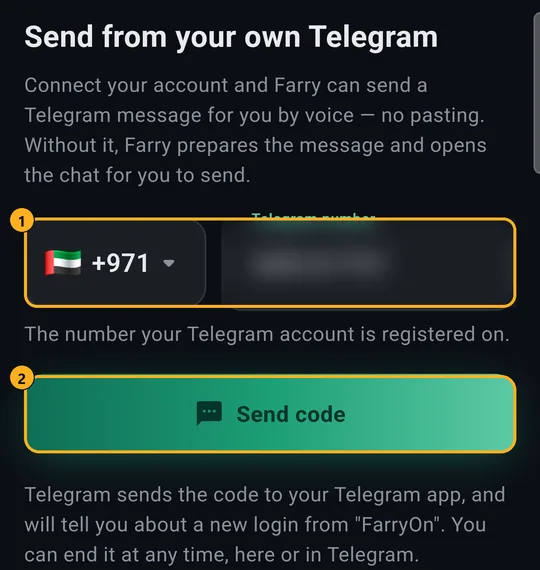
Telegram sends a login code — not by SMS, but as a message inside your Telegram app, from “Telegram”.
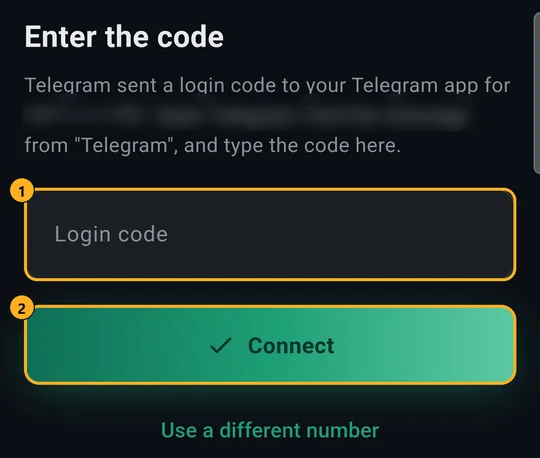
If your Telegram has a two-step password, FarryOn asks for it next.
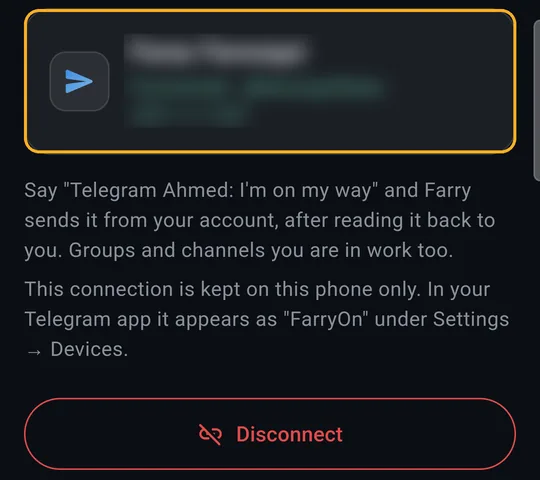
Done — the card shows your name and Connected.
- The connection is kept on this phone only.
- In your Telegram app it appears as “FarryOn” under Settings → Devices.
2Send a message
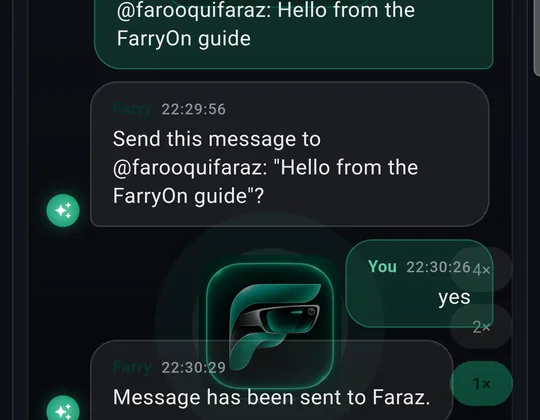
Say who and what, for example:
“Telegram Ahmed: I'm on my way.”
- Farry reads it back — who (name and a part-hidden number) and what — and asks.
- Say “yes” (or haan, send it, ok).
- Wait until Farry says it was sent.
Groups and channels you're in work too: “Telegram the family group: dinner at 8.”
3Send a photo from your glasses
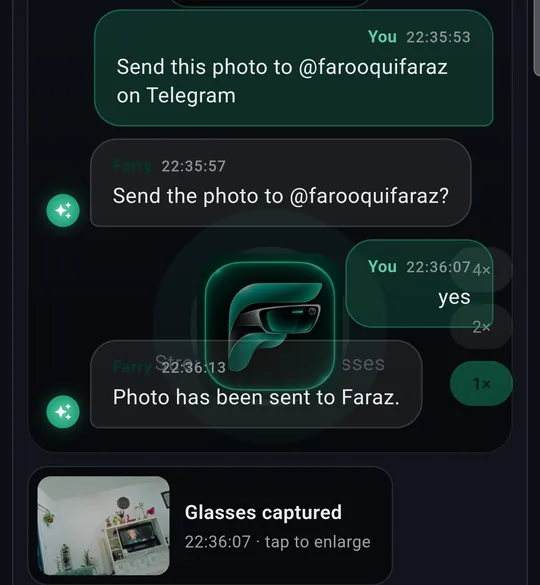
- In one go: “Take a photo and send it to Ahmed on Telegram.”
- Or after taking one (camera button or “take a photo”): “Send this photo to Ahmed.”
The photo you see on the screen is the one that goes. Say a caption if you want one (“…with the caption: the view from here”); otherwise it goes without.
Farry asks “Send the photo to Ahmed?” — say yes.
4Send a video from your glasses
- Record: say “Record a video” or tap the record button (30 seconds by default — Part 2, step 6).
- Copy it to the phone: it copies by itself if Automatically is on in Settings → Video recording; otherwise tap Sync on the chip:

- Send: “Send that video to Ahmed on Telegram” → Farry asks → “yes”.
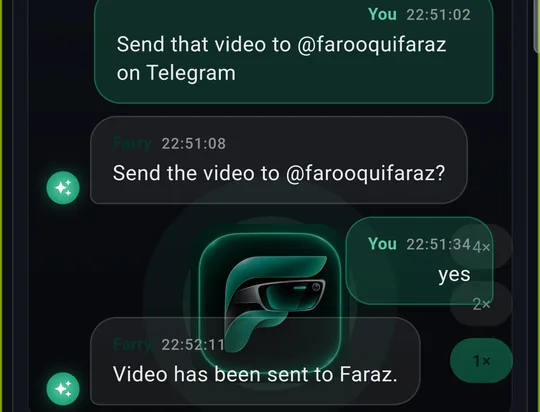
- It's always your newest video that goes — you can't pick an older one yet.
- A 30-second glasses video is about 40 MB — on mobile data it takes about a minute. Wait for “sent”; don't ask again while it's sending.
- If the video hasn't reached the phone yet, Farry says so — sync it, then ask again.
5Video sync: what it needs
The glasses copy videos to your phone over a direct Wi-Fi link between the two. It doesn't need the internet — it works on mobile data too — but:
| Needed | Why |
|---|---|
| Phone Wi-Fi switched on | It doesn't have to be connected to a network — but with Wi-Fi off, sync never starts. |
| Glasses off the charger | On the charger the glasses' Wi-Fi sleeps and sync can fail. |
| Glasses connected by Bluetooth | The phone asks the glasses for the file over Bluetooth first. |
| FarryOn open until it's done | Sync stops if the app is closed. |
6Good to know
- Nothing goes without your yes. If the app closes before a message is sent, ask again — Farry never sends on an old yes.
- Photos and videos need Telegram connected (step 1). Without it, Farry can only open the Telegram chat for you to paste the text yourself.
- Biggest file: 64 MB — about 45 seconds of glasses video. Longer recordings can't be sent yet.
- Photos and videos go by Telegram only for now — not WhatsApp or SMS.
Disconnect

Settings → Telegram → Disconnect. Farry stops sending from your account, and the “FarryOn” device is signed out of your Telegram. You can also end it from Telegram: Settings → Devices → FarryOn.
?If something goes wrong
| What you see | What to do |
|---|---|
| No login code arrives | Look inside the Telegram app (not SMS), in the chat from “Telegram”. Check the number and country. |
| “Telegram ended this connection” | It was signed out from Telegram's Devices list. Connect again (step 1). |
| Video stuck “waiting” or sync at 0% | Turn the phone's Wi-Fi on, take the glasses off the charger, keep FarryOn open, tap Sync. |
| “The video isn't on the phone yet” | Let the sync finish, then ask again. |
| Video too big | Record 45 seconds or less (Settings → Video recording → 30 seconds). |
| Farry can't find the person | Use their Telegram @username, or the name saved in your phone's contacts. |
Still stuck? Message us on WhatsApp — a real person answers.
Sat–Thu, 10:00–19:00 GST