 FarryOn
Messages and calls
Ask Farry to WhatsApp someone, text them or call them — by name. Farry finds the person in your phone's contacts, reads the message back to you, and opens WhatsApp or Messages with it already typed. You tap Send.
How it works
- Messages go from your own WhatsApp and SIM — Farry doesn't send anything from a FarryOn account.
- Your contacts stay on your phone. Farry only ever sees a hidden number like +971 ••• ••57, never the real one.
- Nothing goes out without your yes. Farry always tells you who and what first, then waits.
1Let Farry see your contacts
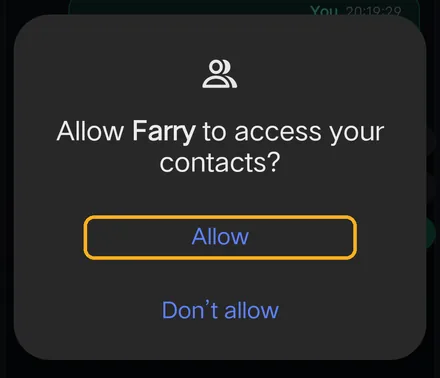
The first time you message someone by name, your phone asks “Allow Farry to access your contacts?” Tap Allow.
This lets Farry find people by the names saved in your phone. The search happens on the phone — your contact list isn't uploaded.
2Send a WhatsApp message
Say it — or type it — the way you'd say it to a person:
“Send a WhatsApp to Sara: see you tomorrow at 10.”
Farry finds Sara and reads it back, with her number hidden:
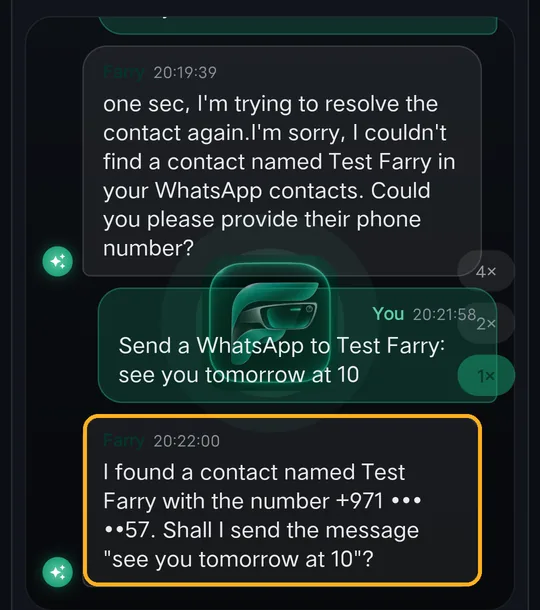
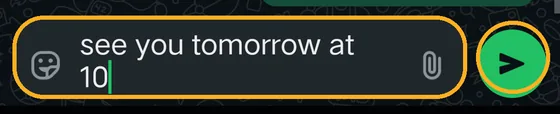
Say “yes”. WhatsApp opens on Sara's chat with your message already typed. Tap the green Send button to send it:
3Send an SMS
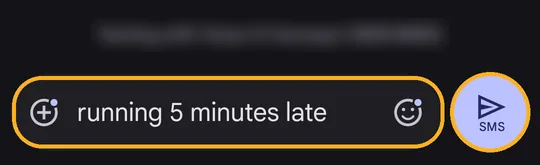
“Text Sara by SMS: running 5 minutes late.”
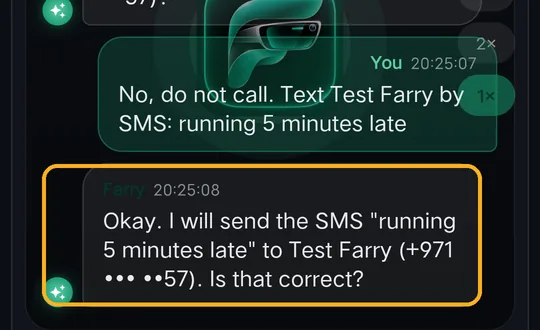
Say “yes”. Your phone may ask which app to use:
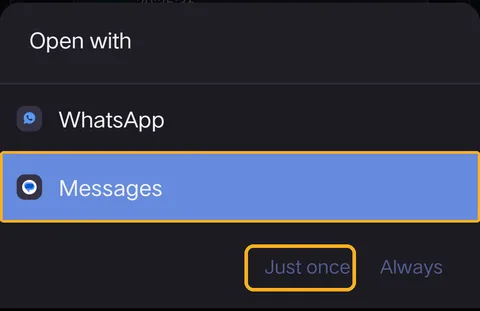
Choose Messages, then Just once (or Always so it won't ask again). Your Messages app opens with the text typed in — tap Send:
4Make a phone call
“Call Sara.” Farry checks first:
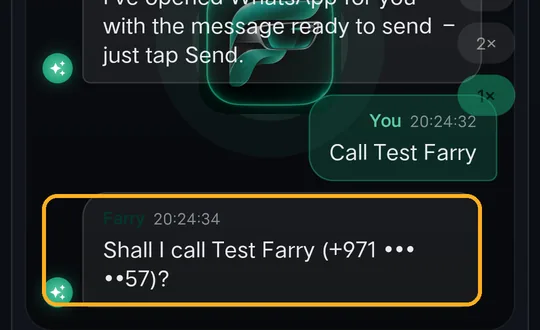
Say “yes” and the call starts. Say “no” and nothing happens.
5Good to know
| Situation | What Farry does |
|---|---|
| Two contacts with the same name | Asks which one — e.g. “Sara Home or Sara Office?” |
| Name isn't in your contacts | Asks for the number. You can also say “Save Sara's number as +971 …” and use the name next time. |
| Contact has no phone number | Tells you, instead of guessing. |
| You change your mind | Say “no” or “cancel” before saying yes — nothing is opened or sent. |
| With glasses on | Ask by voice with the phone in your pocket; take the phone out only to tap Send. |
?If something goes wrong
| What you see | What to do |
|---|---|
| “I couldn't find a contact named …” | Check the name matches your phone's contacts. Allow Contacts (step 1). Or give the number. |
| WhatsApp says the number isn't on WhatsApp | That person doesn't use WhatsApp on that number — send an SMS instead (step 3). |
| WhatsApp opened but nothing was sent | That's expected — tap the green Send button. Farry never sends on WhatsApp by herself. |
| The wrong app opens for SMS | Pick Messages in the “Open with” list, then Always. |
| A call didn't start | Allow the phone-calls permission, or tap Call in the dialer that opened. |
Still stuck? Message us on WhatsApp — a real person answers.
Sat–Thu, 10:00–19:00 GST