 FarryOn
Connect your glasses
Pair your glasses once, and Farry hears you through them, talks into your ears and sees what you see. The screenshots show the GS5 MAX; the GS4 MAX, L801 and L802 work the same way.
Before you start
- You've finished Part 1: FarryOn is installed and you're signed in.
- Your glasses are charged and switched on.
- The glasses are not connected to another phone. Glasses talk to one phone at a time — if another phone has the FarryOn or HeyCyan app open, close it or turn its Bluetooth off.
1Pair them with your phone
This is what lets you hear Farry through the glasses and lets Farry hear you. You do it once, in your phone's own Bluetooth settings.
- Open your phone's Settings → Bluetooth and make sure it's on.
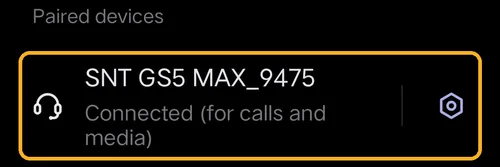
- Under Available devices, tap your glasses — for example SNT GS5 MAX_9475 (the last four characters are different on every pair).
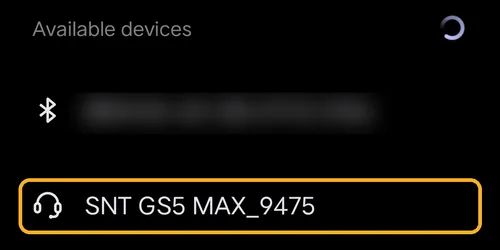
After a few seconds they move up to Paired devices and say “Connected (for calls and media)”:
2Connect them in FarryOn
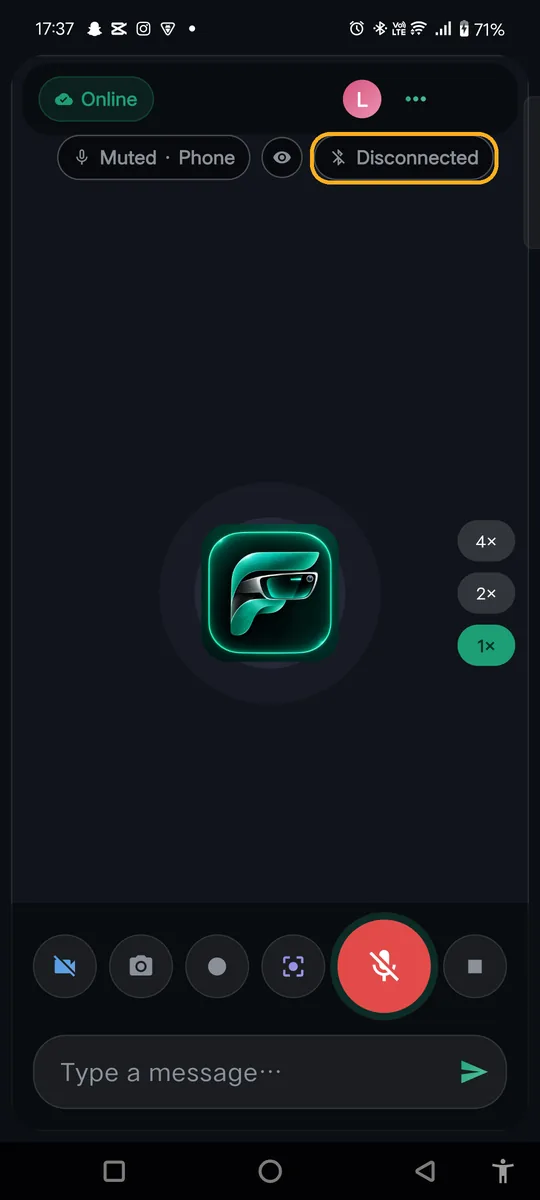
Open FarryOn. At the top, the glasses chip says Disconnected. Tap it.
It changes to Connecting… while FarryOn looks for glasses nearby.
You can also connect from Settings → Glasses.
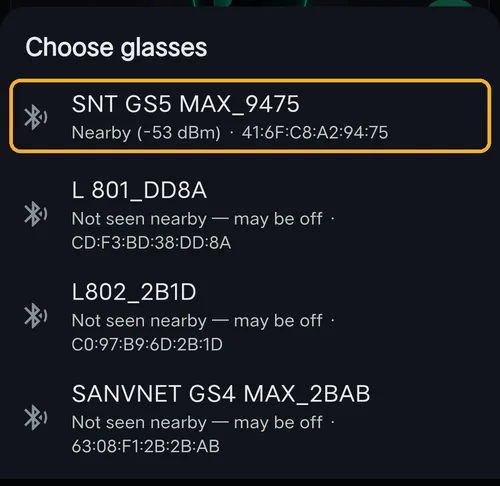
If FarryOn finds more than one pair, it asks “Choose glasses”. Tap the one marked Nearby. Glasses marked “Not seen nearby — may be off” are ones this phone knew before.
With only one pair nearby, FarryOn connects straight away and skips this list.
FarryOn remembers your choice and reconnects by itself next time.
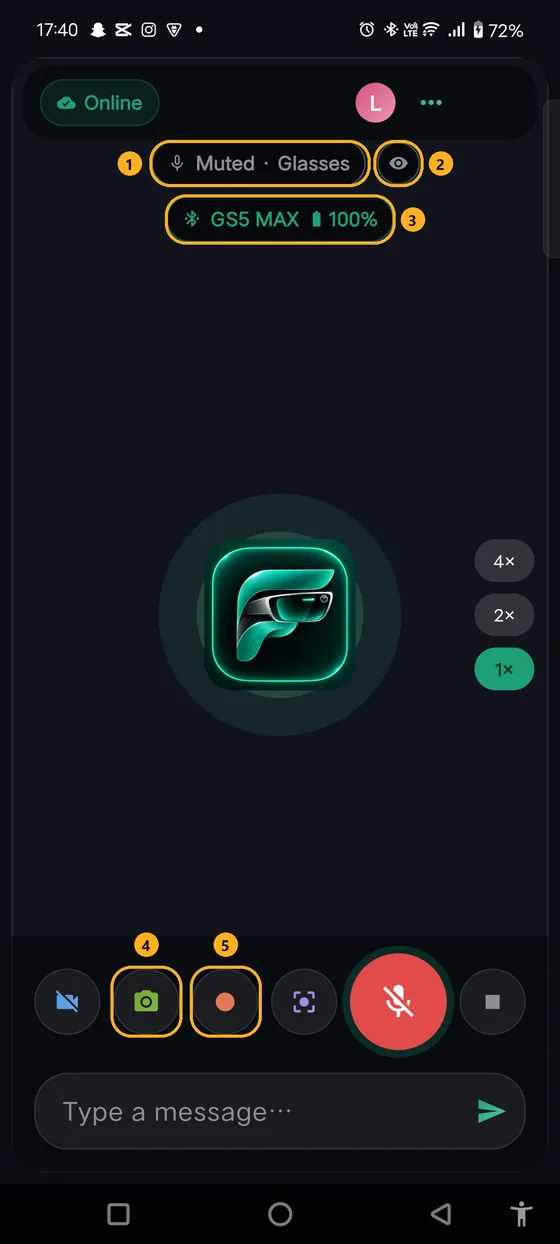
Connected. The home screen changes:
3Your glasses in Settings
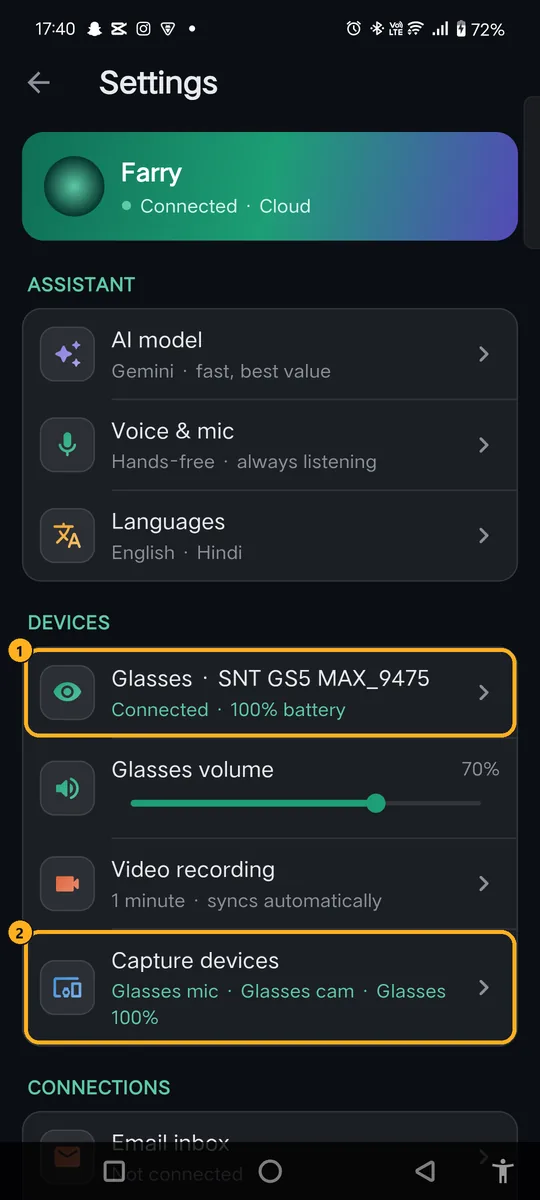
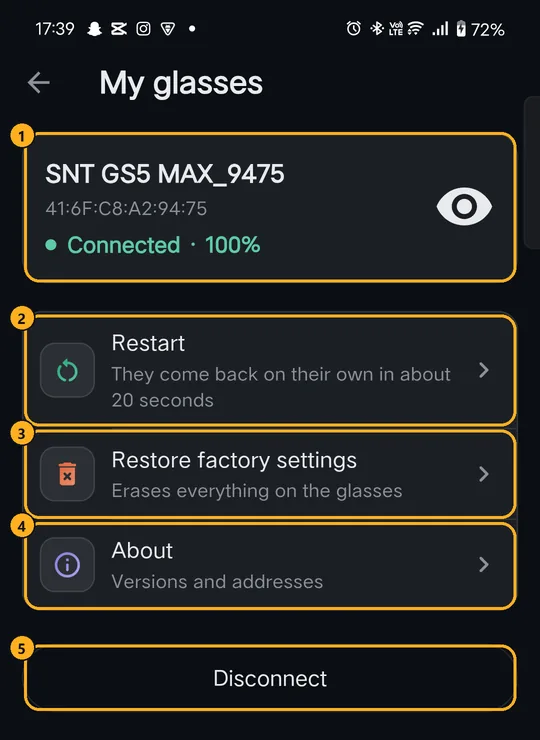
My glasses:
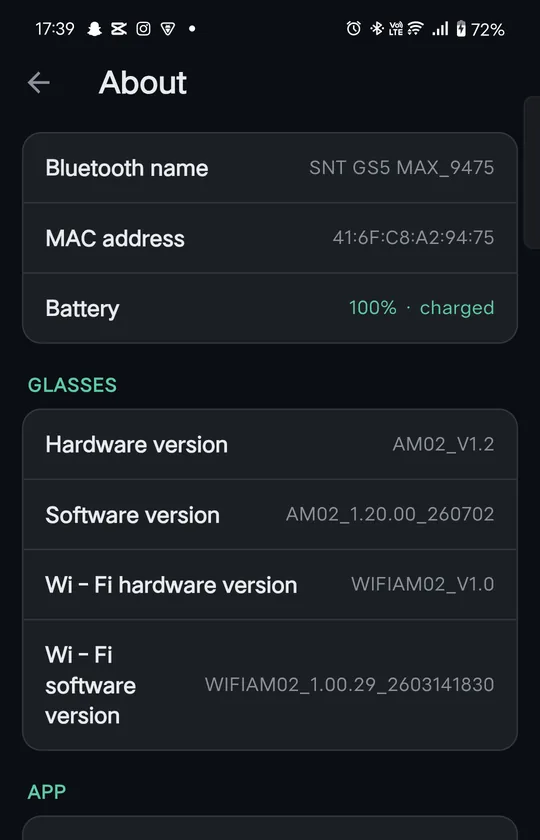
4Talk through the glasses
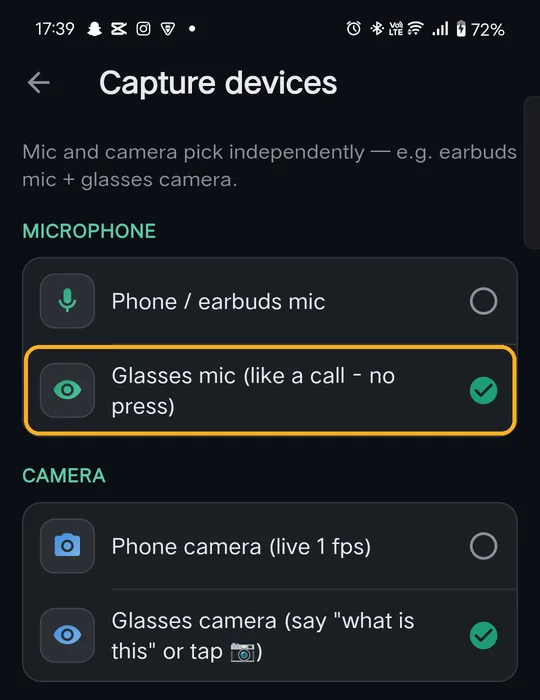
By default Farry listens through the phone's microphone. To use the glasses' microphone instead — much better when the phone is in your pocket:
- Settings → Capture devices.
- Under Microphone, tap Glasses mic (like a call – no press).
The glasses work like a phone call: just talk, there's nothing to press. The mic chip on the home screen now says Listening · Glasses.
Under Camera, Glasses camera is chosen for you once glasses are connected.
5Take a photo with the glasses
Two ways:
- Just ask: “What am I looking at?” or “Read this for me.” Farry takes a photo through the glasses and answers.
- Tap the camera button (4 on the home screen) to take one yourself.
A card appears with the photo. Tap it to see it full size.

6Record a video
Tap the record button (5 on the home screen), or say “Record a video.” A bar shows the time. Farry stays quiet while you record, so her voice isn't in your video.
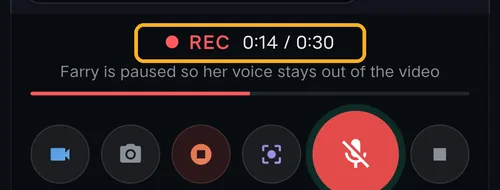
The glasses stop by themselves at the length you've chosen.
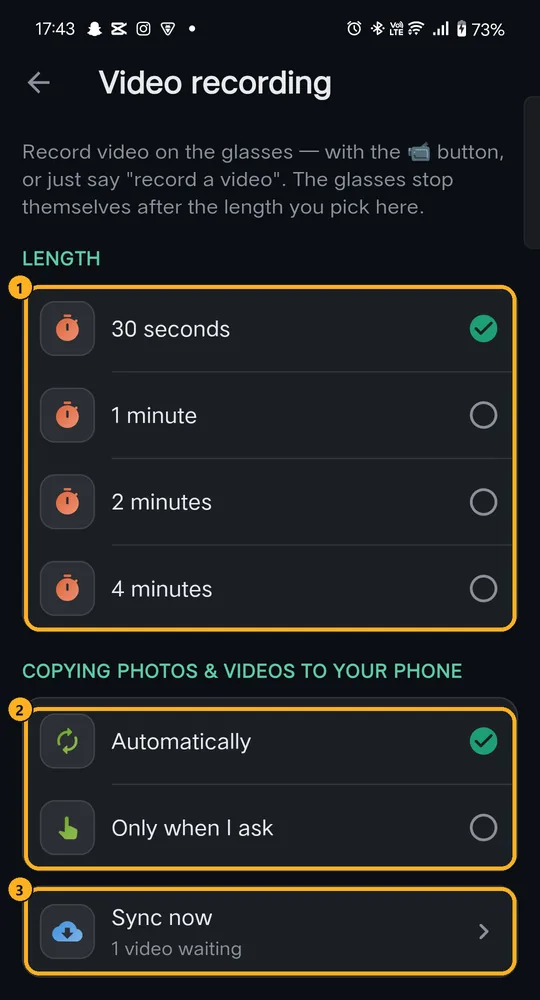
Settings → Video recording:
Videos land in your phone's gallery, in the FarryOn album
(folder DCIM/FarryOn).
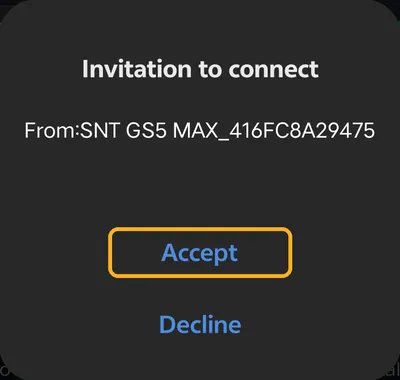
The copy goes over a direct Wi-Fi link between the glasses and your phone. Your phone may ask:
“Invitation to connect — From: SNT GS5 MAX…”
- Copying takes a while — a 30-second video is about 40 MB, a 4-minute one a few hundred MB.
- While it copies, the glasses can't take photos or record.
- Keep the glasses off the charger and near the phone until it's done.
?If something goes wrong
| What you see | What to do |
|---|---|
| “No glasses found — make sure they are on and nearby” | Switch the glasses on, bring them close, and check they aren't connected to another phone. Then tap the chip again. |
| The glasses chip says pair for audio | FarryOn is connected but your phone isn't paired with the glasses yet. Do step 1. |
| Farry's voice comes from the phone, not the glasses | Same as above: pair them in your phone's Bluetooth settings (step 1). |
| Farry doesn't hear you through the glasses | Choose Glasses mic in Capture devices (step 4), and check the mic chip isn't Muted. |
| “FarryOn needs the Nearby devices permission” | Tap Settings in the message and allow Nearby devices. |
| A video stays “waiting” and never arrives | Glasses off the charger and near the phone, then Sync now — and Accept the “Invitation to connect”. |
| The glasses keep disconnecting | Try Restart on the My glasses page. Still happening? Send us the versions from About. |
Still stuck? Message us on WhatsApp — a real person answers.
Sat–Thu, 10:00–19:00 GST